Supplies & Maintenance

How to Replace the Scanner Maintenance Kit on a Xerox VersaLink B605 or B615
Submitted by Matthew Eberhart on
Video


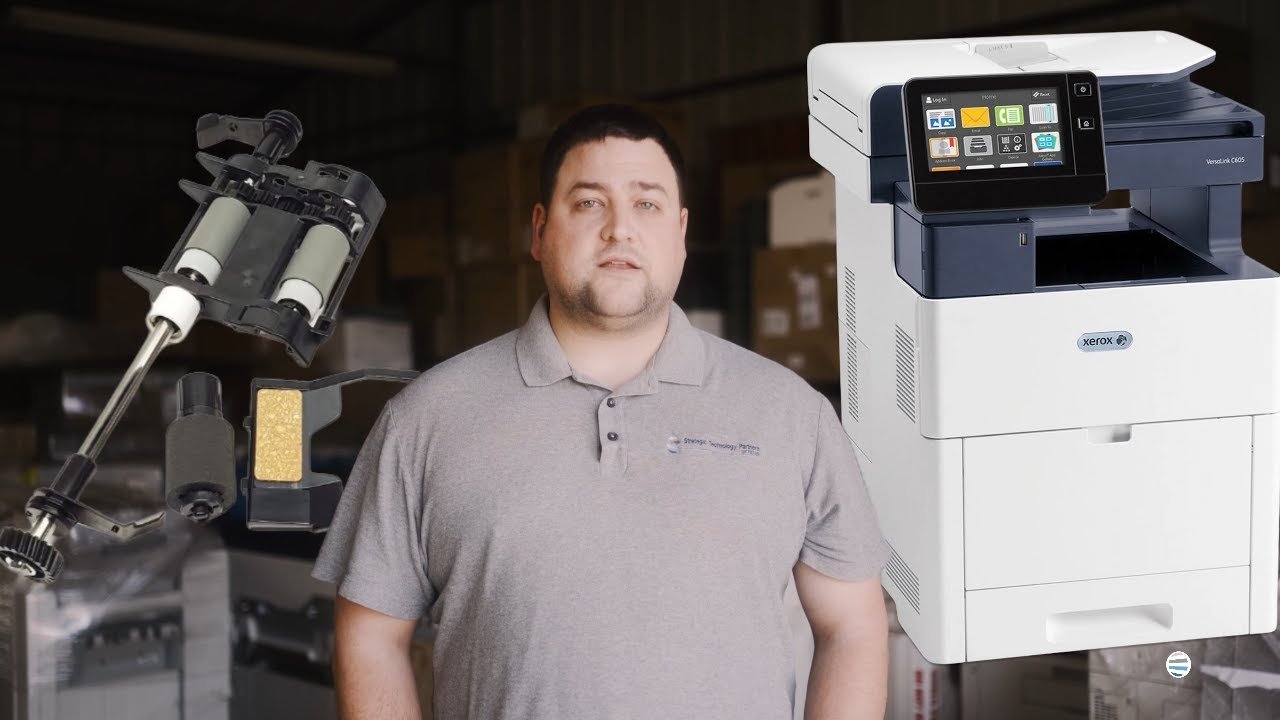
Having trouble scanning or copying multiple documents on your Xerox VersaLink B605 or B615? Maybe the automatic document feeder keeps jamming, struggles to pick up pages, or feeds more than one sheet at a time. If you've ruled out a problem with the paper itself, your scanner maintenance kit may need attention.

The scanner maintenance kit’s two roller sets move paper through the ADF. You need to replace the kit when the rollers wear, or the printer indicates maintenance is needed, to help prevent feeding problems and restore reliable scanning.

At Strategic Technology Partners of Texas (STPT), we've serviced thousands of Xerox printers and handled roller-related maintenance issues thousands of times. With more than 40 years in the printer industry, we know how frustrating it can be when a simple scanning task interrupts your workday.
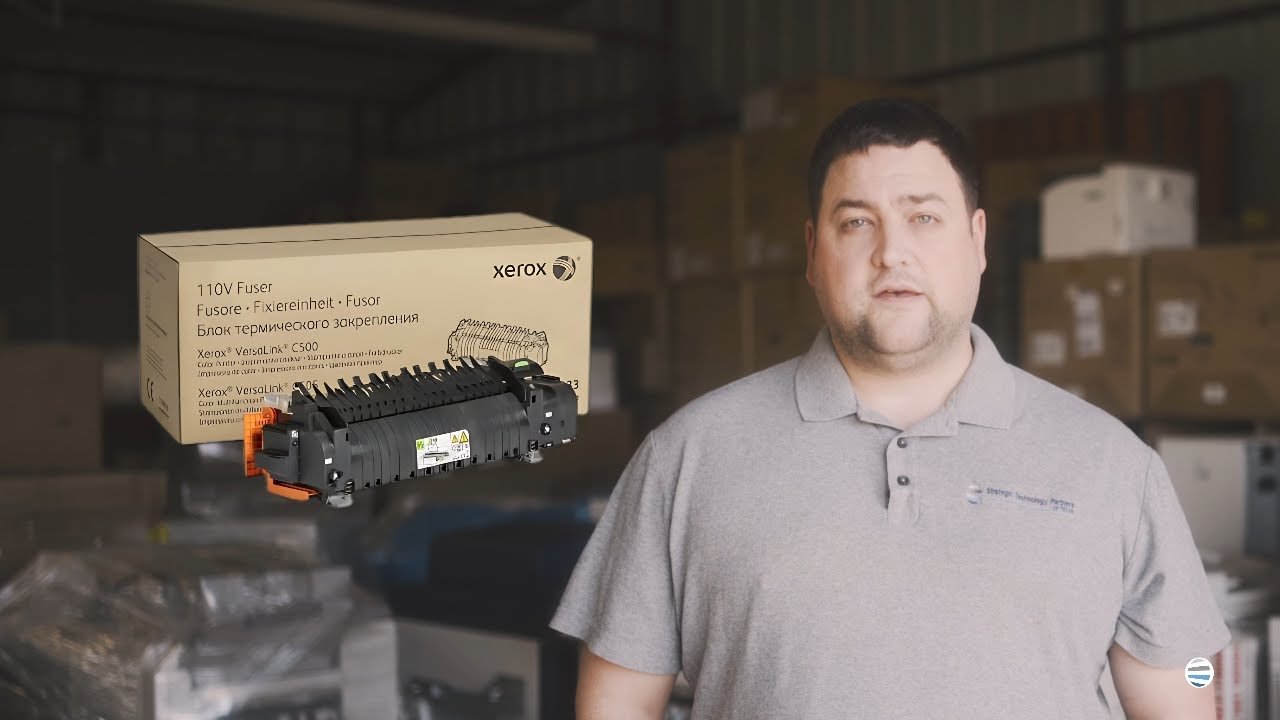
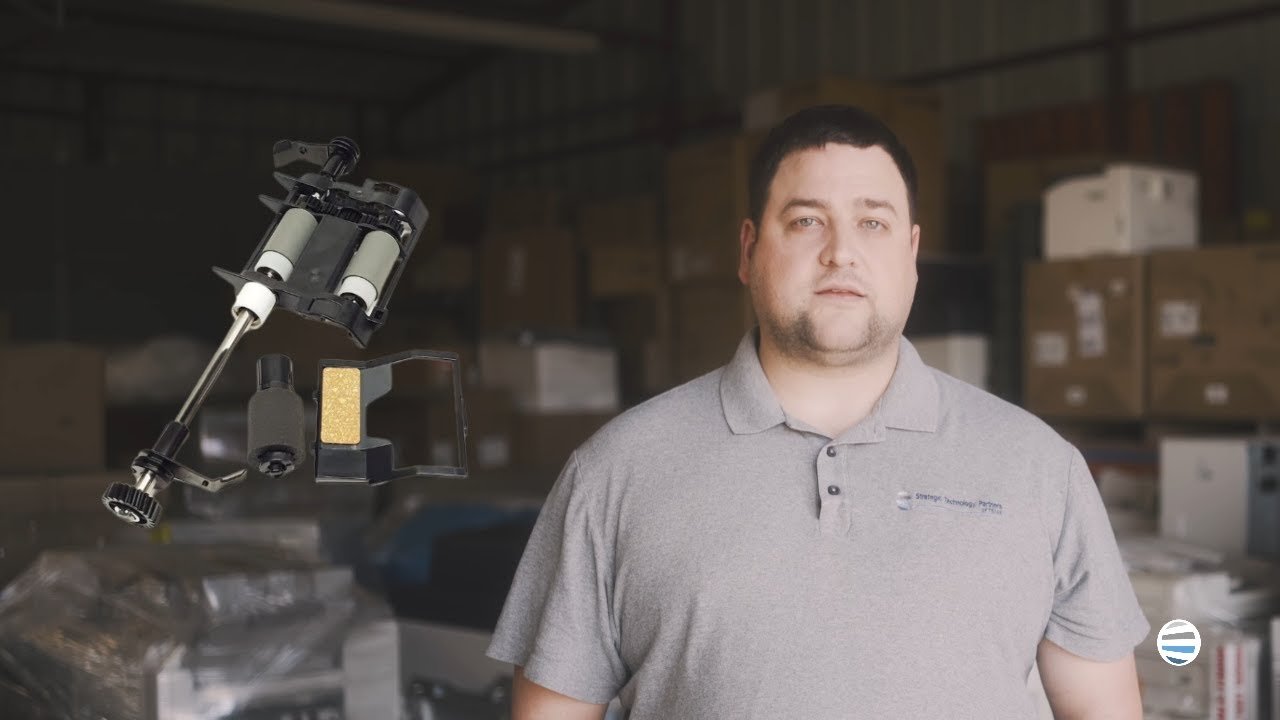
How to Replace the Maintenance Kit on a Xerox VersaLink C500 or C505 (Step-by-Step)

Submitted by Matthew Eberhart on
Video

Few things are more frustrating than a printer breaking down when you need it most. Knowing how to handle routine maintenance can save businesses and consumers time and money, and keep them from waiting on someone else’s schedule.

Replacing the maintenance kit on your Xerox printer may sound complicated, but it’s simpler than you think. The kit contains parts that transfer toner to paper and guide sheets through the printer. These components wear down over time, so replacing them as needed helps preserve print quality, smooth paper feeding, and reliable performance.

At Strategic Technology Partners of Texas (STPT), we've serviced thousands of Xerox printers and handled maintenance-related repairs and replacements thousands of times. With more than 40 years in the printer industry, we know how important it is to keep your equipment running without unnecessary interruptions.

How to Replace the Scanner Maintenance Kit on a Xerox VersaLink C505

Submitted by Matthew Eberhart on
Video


Is your Xerox VersaLink C505 having trouble feeding documents through the scanner? Maybe you're experiencing paper jams in the automatic document feeder (ADF), documents aren't feeding properly, or your printer is telling you it's time for scanner maintenance. These issues can make even simple scanning or copying tasks frustrating, especially when you're trying to get work done.

The scanner maintenance kit helps your printer feed pages through the automatic document feeder. Its rollers wear down over time, which can affect how well pages feed and separate. Replace worn rollers or the kit when your printer indicates maintenance is needed to keep documents feeding reliably.

At Strategic Technology Partners of Texas (STPT), we've serviced thousands of Xerox printers and handled roller-related maintenance and repairs thousands of times.

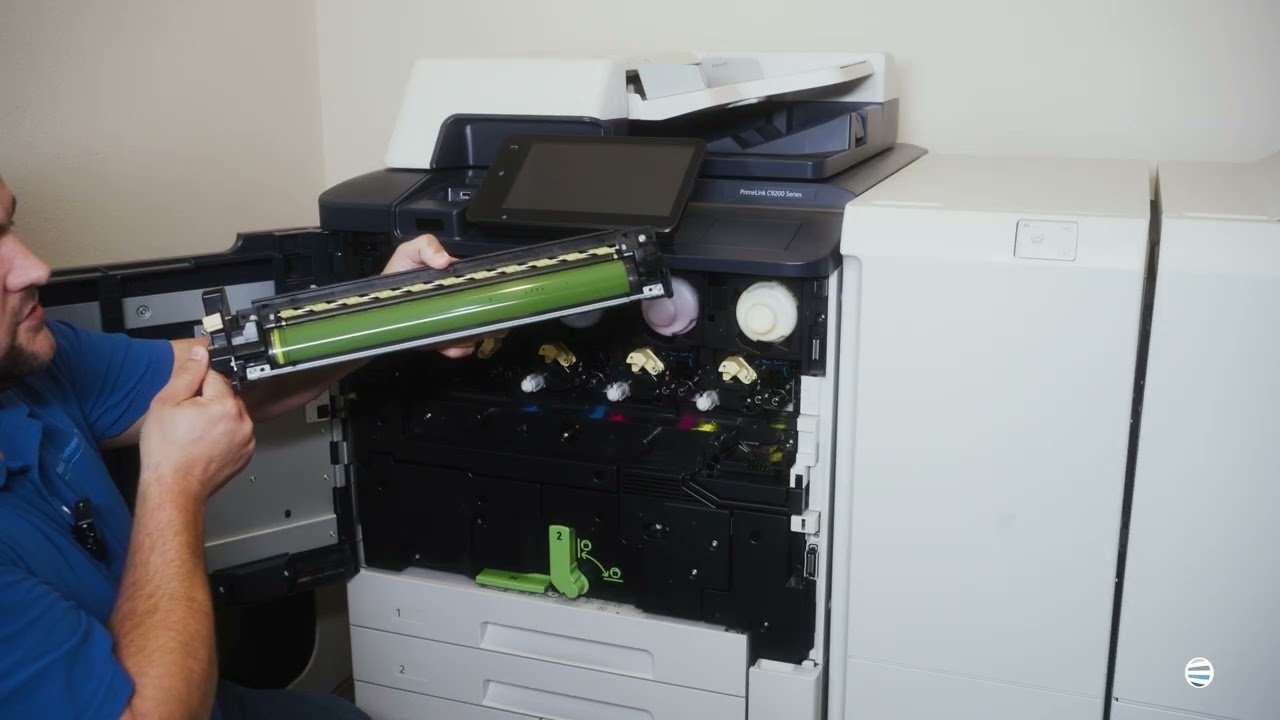
How to Replace a Drum on a Xerox PrimeLink C9200 Series Copier

Submitted by Matthew Eberhart on
Video

The process of replacing a drum on a printer is manageable, but there is one part you need to be especially careful with: the drum’s green surface should never be touched.

A printer drum transfers the toner image to each page, so it gradually wears and eventually needs replacing. Your PrimeLink may alert you when the drum reaches the end of its service life, and a worn or damaged drum can affect print quality.

As a print vendor for 40+ years, we’ve serviced thousands of printers, and our technicians regularly work on Xerox equipment ranging from everyday office printers to production machines like the PrimeLink Series.

In this guide, we’ll show you how to replace a drum on a Xerox PrimeLink C9200 Series copier. You’ll learn how to access and unlock the drum, remove it without touching the sensitive green surface, install the replacement, and put everything back together correctly.

Table of Contents

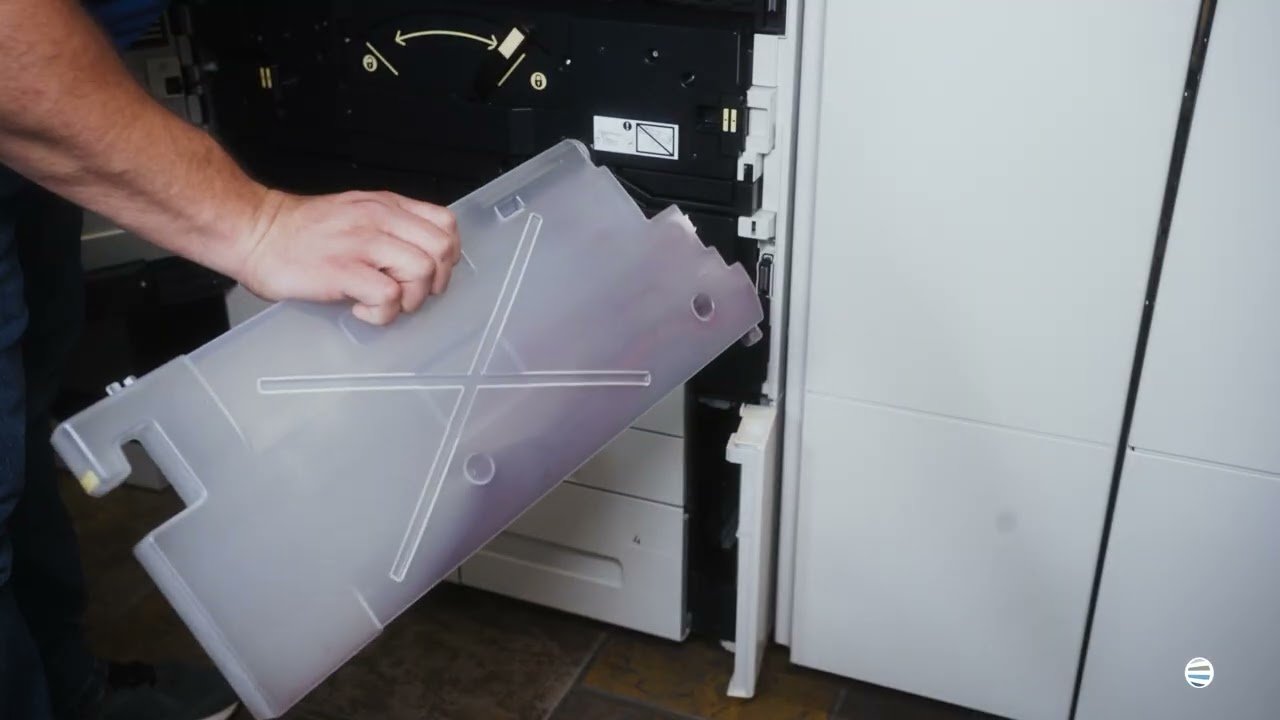
How to Replace the Waste Toner Container on a Xerox PrimeLink C9200 Series Printer

Submitted by Matthew Eberhart on
Video

After a while, you’ll need to replace the waste toner container on your Xerox PrimeLink C9200 Series.

While printing, the waste toner container collects excess toner. As you continue printing, that toner accumulates until the container eventually reaches capacity and needs to be replaced. When your machine indicates that the waste toner container is full or needs replacement, changing it promptly allows the printer to continue managing excess toner as designed.

With more than 40 years in the industry, our technicians regularly work on Xerox equipment ranging from everyday office printers to production machines like the PrimeLink Series.

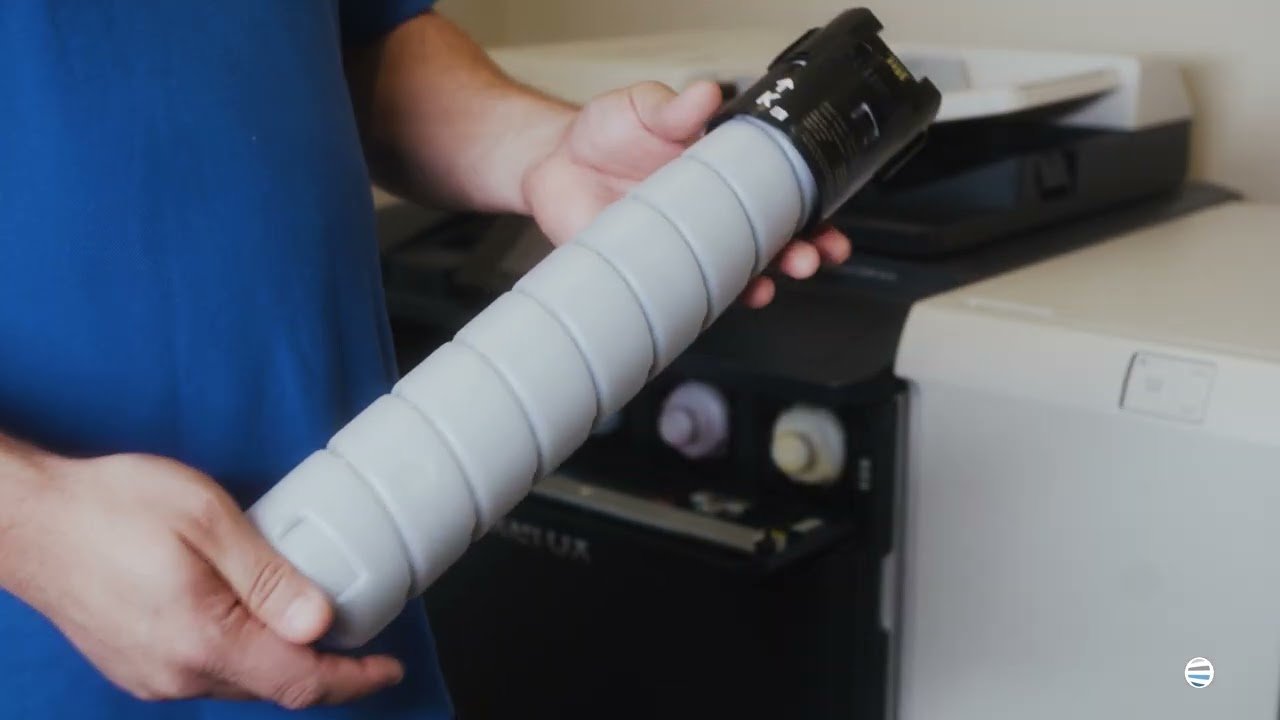
How to Replace Toner on a Xerox PrimeLink C9200 Series Printer

Submitted by Matthew Eberhart on
Video


When your Xerox PrimeLink C9200 Series copier tells you it needs toner, the size of the machine can make a simple supply change look more complicated than it really is. The supplies are larger than what you may be used to seeing in a standard office printer. Fortunately, replacing the toner is still a straightforward process.

At Strategic Technology Partners of Texas (STPT), we’ve serviced thousands of printers and copiers and handled toner replacements and related supply issues thousands of times.

In this guide, Matthew from The Printing Workshop, a printer technician with several years of hands-on repair experience, will show you how to replace toner on a Xerox PrimeLink C9200 Series copier. You’ll learn where the toner cartridges are located, how to remove the old cartridge, how to align the replacement correctly, and how to make sure it is fully seated before you finish.

Table of Contents

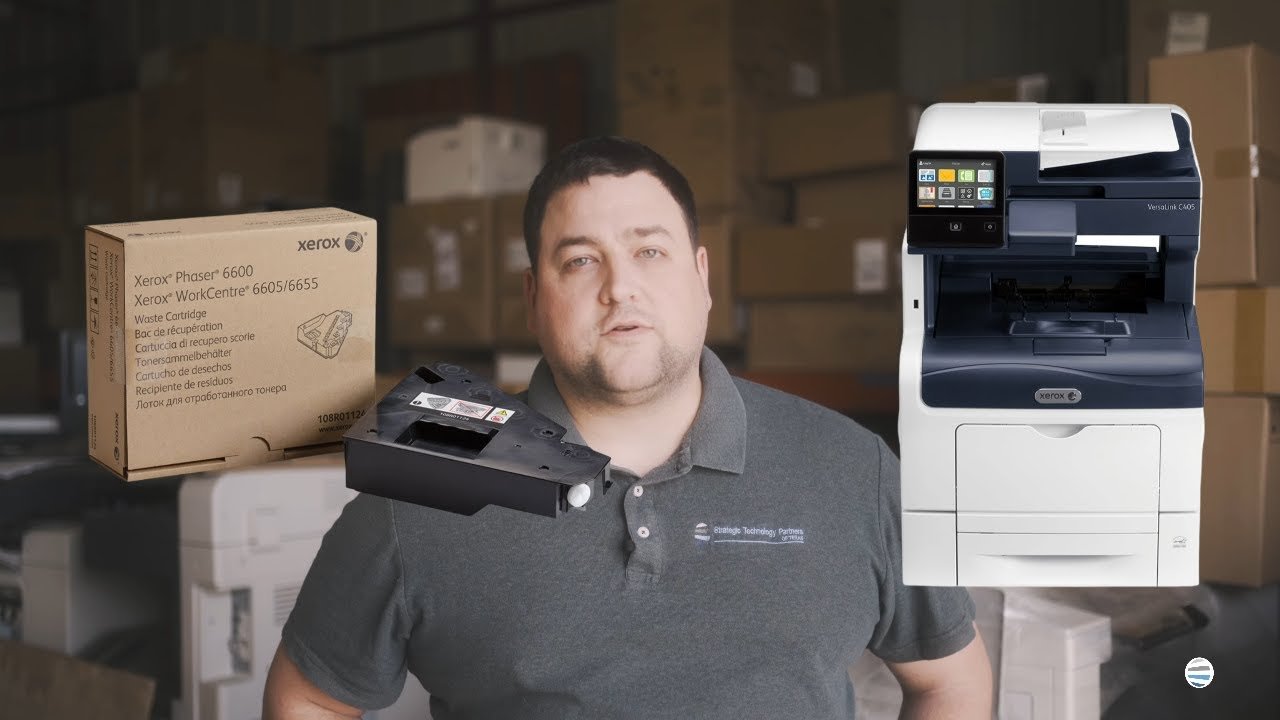
How to Replace the Waste Toner Container on a Xerox VersaLink C400 or C405 Printer

Submitted by Matthew Eberhart on
Video


Replacing a waste toner container on the Xerox VersaLink C400/C405 is easier than one might think.

The waste toner container collects excess toner that isn't transferred to the paper during printing. As you continue printing, the container gradually fills up. Once it reaches capacity, the printer will notify you that it needs to be replaced. Replacing it on time helps prevent toner buildup inside the printer and allows your VersaLink to continue operating normally.

At Strategic Technology Partners of Texas (STPT), our technicians help businesses throughout North Texas keep their printers running reliably while minimizing downtime.

How to Replace Toner on a Xerox VersaLink C400 or C405 Printer

Submitted by Matthew Eberhart on
Video


Toner replacement is one of those things you have to do when you own a printer. Thankfully, Xerox makes it easy, and the VersaLink C400/C405 models are no exception.

Toner is what your printer uses to create text and images. As you print, that supply gradually runs out. When the toner reaches the end of its usable life, the printer will alert you that the cartridge needs attention or replacement. You may also notice faded output if the toner is running very low.

At Strategic Technology Partners of Texas (STPT), our technicians work with Xerox equipment every day, so replacing cartridges like these is routine when keeping customers’ printers running reliably.

In this guide, Matthew from The Printing Workshop, a printer technician with several years of hands-on repair experience, will show you how to replace toner on a Xerox VersaLink C400 or C405. This process also applies to the B400 and B405.

How to Replace the Fuser on a Xerox VersaLink C400 or C405 Printer

Submitted by Matthew Eberhart on
Video


Replacing the fuser on your Xerox VersaLink C400 or C405 is not complicated. However, there are two things you absolutely need to get right: powering the printer down first and handling the fuser carefully because it can get very hot.

The fuser is the part of the printer that uses heat and pressure to bond toner permanently to the paper. Because it operates at high temperatures and handles every printed page, the fuser gradually wears out over time. When it reaches the end of its service life, the printer may prompt you to replace it, or you may begin noticing print-quality problems such as toner that does not fully adhere to the page.

At Strategic Technology Partners of Texas (STPT), we’ve serviced thousands of printers and handled fuser-related repairs thousands of times.

How to Replace the Waste Toner Container on a Xerox AltaLink C8000 or B8000 Series

Submitted by Matthew Eberhart on
Video


A “Replace Waste Toner Container” message can stop you in the middle of a busy workday and leave you wondering whether this is a quick fix or something that requires a service call. The good news is that replacing the waste toner container on a Xerox AltaLink C8000 Series copier is a simple maintenance task when you know the correct steps.

The waste toner container collects excess toner that is removed during normal printing. Because that toner has to go somewhere, the container gradually fills over time. Once it reaches capacity, the copier will alert you that it needs to be replaced. Changing it promptly helps prevent toner from spilling inside the machine and keeps the copier ready for use.

Subscribe to Supplies & Maintenance