 Skip to main content


If your printer can print normally but suddenly refuses to scan, it can feel like your machine is picking and choosing when to work. However, in most cases, the printer isn’t actually “broken.”
Oftentimes, scanning issues are caused by connection problems, incorrect settings, or changes in your network instead of the scanner itself. So, the solution is often simpler than it looks, if you know where to check.
We help customers with scanning issues on a weekly basis. In this guide, we’ll walk you through the most common reasons your printer won’t scan, how to fix them, and when it makes sense to call in expert help.
Table of Contents
- Short Answer: Why Can’t I Scan from My Printer to My Computer?
- What Are the Most Common Reasons a Printer Won’t Scan?
- First 5 Things to Try If Your Printer Won’t Scan
- Why Your Printer Won’t Scan to Your Computer
- Why Scan-to-Email, Scan-to-Folder, and USB Scanning Fail Differently
- Signs the Problem Is NOT the Printer
- Signs Your Scanner May Need Service
- Common Mistakes that Cause Scanning Problems
- When to Call for Help
- FAQ
Short Answer: Why Can’t I Scan From My Printer to My Computer?
The most common reason a printer won’t scan isn’t hardware failure, but a connection or destination issue. Scanning relies on the printer reaching a computer, email server, or folder. But if that connection breaks due to network issues, incorrect settings, or outdated credentials, the scan cannot be delivered, even though the scanner itself still works.
What Are the Most Common Reasons a Printer Won’t Scan?
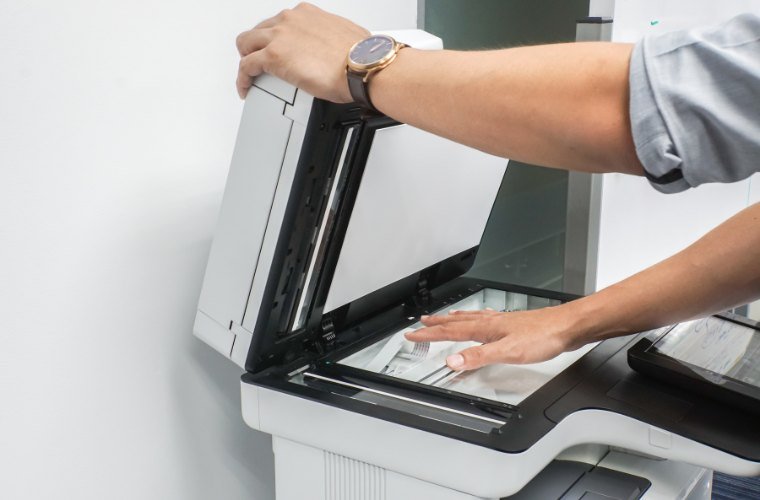
Most scanning problems have to do with communication. A multifunction printer scans a document, processes it, and sends it somewhere. If any part of that chain fails, the scan fails as well.
Here are the most common causes we see in the real-world:
- Network connection issues
- Incorrect scan destination (email, folder, or computer)
- Expired or changed passwords
- Computer or server being offline
- Permission or access issues
- Firewall or security restrictions
- Misconfigured scan settings
The process of scanning goes like this:
The printer scans the document → the printer sends the file → the destination receives it.
If step two or three fails, scanning stops working.
First 5 Things to Try If Your Printer Won’t Scan
Before you assume something is seriously wrong, start with these quick troubleshooting steps. These could fix a large percentage of scanning issues.
- Restart the printer and your computer: Restarting clears temporary communication errors between devices.
- Check the printer’s network connection: Make sure the printer is connected and not showing any error messages.
- Verify the scan destination: Confirm the email address, folder path, or USB device is correct and accessible.
- Try a different scan method: For example, scan to USB instead of email. This helps isolate the problem.
- Think about what recently changed: Password updates, network changes, or new security settings often break scanning.
If you’re seeing problems beyond scanning, check out these common printer problems and solutions to fix them.
Why Your Printer Won’t Scan to Your Computer
If your main issue is “my printer won’t scan to my computer,” the problem is usually related to how the printer connects to that specific device.
Network or Connection Issues
The printer and computer must be on the same network to communicate. If the network changes for whatever reason or if there are Wi-Fi connectivity issues, the connection breaks.
If you suspect that’s the case, learn about these common printer Wi-Fi connectivity solutions.
Computer Is Offline or Asleep
If your computer is powered off, asleep, or disconnected, the printer has nowhere to send the file. This is why keeping your printers online is important.
Folder or Permission Problems
Scanning to a computer typically uses a shared folder.
- The folder may no longer exist
- Permissions may have changed
- Stored login credentials may be outdated
A printer sends scans to a computer by using a saved network path and login credentials. If either one is incorrect, the scan will fail.
Why Scan-to-Email, Scan-to-Folder, and USB Scanning Fail Differently
Depending on which scanning method you use, it can fail for a different reason. Here’s a short comparison of scanning methods and common reasons why they fail.
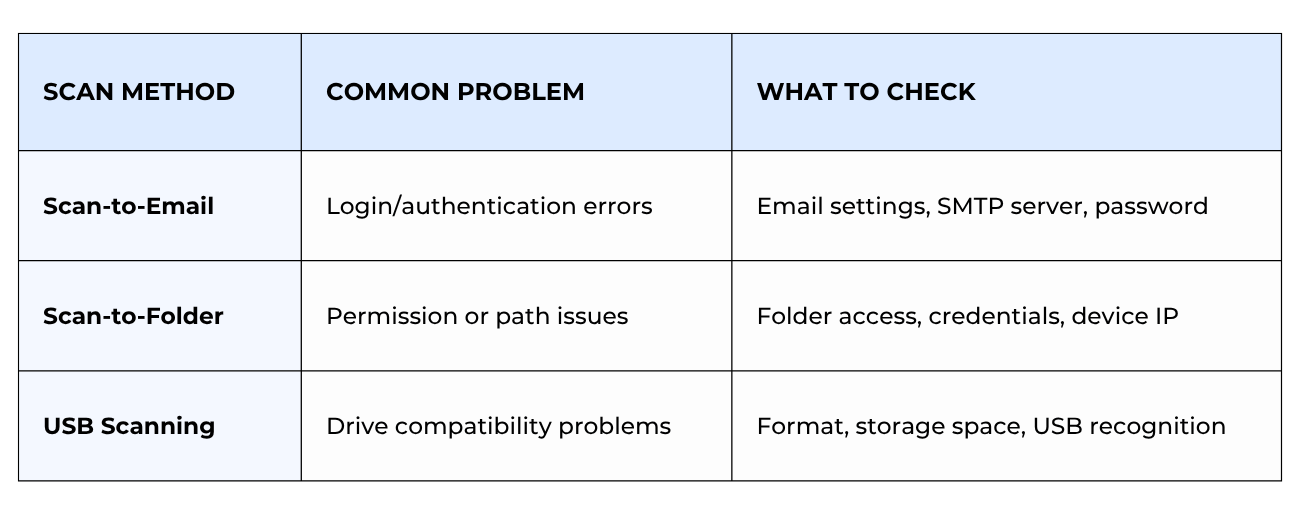
For example:
- If USB scanning works but scan-to-folder does not, the scanner hardware is fine.
- If scan-to-email fails after a password change, the issue is likely authentication.
Signs the Problem Is NOT the Printer
Many people assume the printer is broken if it stops scanning. This isn’t always the case. To be sure, look for clear signs that the issue is external.
- The printer can still copy normally
- Only one scan method fails
- You see login or server connection errors
- Scanning stopped after a password or network change
If the printer can copy but cannot send scans, the scanner hardware is working. In this case, the problem is in the connection or destination.
Signs Your Scanner Might Need Service
While not as common, hardware issues do happen.
Look for these signs:
- Lines or streaks on scanned documents
- Blank or distorted scans
- Unusual noises during scanning
- Repeated document feeder jams
- Scans failing even to USB
If the printer cannot complete a basic local scan, the issue is most likely internal.
Common Mistakes That Cause Scanning Problems
Some scanning issues aren’t due to technical or hardware problems but come from simple, easy-to-miss mistakes, such as:
- Typing the wrong email address
- Selecting the wrong saved contact
- Scanning to a folder that no longer exists
- Forgetting a password was changed
- Trying to scan to a computer that is asleep
- Placing originals incorrectly or using damaged paper
These small human errors are easier and quicker to fix on the spot.
When to Call for Help
If you’ve gone through the steps above and your printer’s scanner still isn’t working, it might be time to call an expert.
You should consider help if:
- Multiple scan methods are failing
- You see repeated authentication or server errors
- The issue started after a system or security change
- You suspect hardware problems
In these cases, troubleshooting will require deeper access to network settings, permissions, or device configuration. This is best handled with expert support.
FAQ
Why can’t I scan from my printer to my computer?
Your printer usually can’t scan to your computer because it can’t connect to it. This is often caused by network issues, incorrect folder paths, or outdated login credentials.
Why is my printer connected but not scanning?
Your printer may be connected but unable to reach the scan destination. This usually happens due to incorrect settings, expired credentials, or permission issues with the email, folder, or computer.
How do I fix a printer that won’t scan to email?
Check your printer’s email settings, including the SMTP server, username, and password. Scan-to-email often fails after password or security changes, so updating those usually fixes it.
Why does my printer scan but not send the file?
If your printer scans but doesn’t send the file, the issue is likely with the destination. Network problems, incorrect paths, or login errors can prevent the file from being delivered.
Still Can’t Get Your Printer to Scan? Here’s What to Do Next
If your printer won’t scan, it’s easy to assume your printer is broken. But as you’ve seen, most scanning issues are due to connection problems, settings, or changes in your environment.
Now that you have a clear understanding of how scanning works and where it often breaks, you’re better equipped to diagnose the issue confidently.
Still, figuring out which part of the scanning process is the problem isn’t always easy.
If you’re still running into problems or just want a second opinion, our team at Strategic Technology Partners of Texas can help. We’ll walk through your setup, identify the root cause, and determine whether it’s something you can fix in-house or if expert service is needed.
Contact us today to get expert help and get your scanning workflow back on track.
