 Skip to main content


Your firewall may be doing its job perfectly and still leave one important assumption untouched: the printer behind it must be safe.
Modern business printers are network-connected devices that receive, transmit and sometimes store sensitive information. But they’re often monitored less closely than computers, servers and other endpoints. People forget to change default passwords, delay firmware updates, and may be able to print or change settings without the right controls.
Zero trust print security means you don’t automatically trust a user or device because it is inside the company network. Zero Trust requires verifying and limiting access based on the request.
At Strategic Technology Partners of Texas, we have spent more than 40 years working with business printers and supporting organizations across North Texas and Southern Oklahoma. In this article, we will explain what Zero Trust means for printing, why printers are frequently overlooked and which practical steps can help you protect them.
Table of Contents
- What Is Zero Trust Print Security?
- How Is Zero Trust Different From Traditional Security?
- Why Are Printers a Zero Trust Security Concern?
- How Does Zero Trust Apply to Printers?
- What Does Zero Trust Printing Look Like in Practice?
- How Can You Implement Zero Trust Printing?
- Which Technologies Support Zero Trust Printing?
- What Are the Biggest Challenges of Zero Trust Printing?
- Key Takeaways
- FAQ
Short Answer: What Is Zero Trust Print Security?
Zero trust print security is an approach that verifies users, devices and print requests instead of automatically trusting them because they are connected to the company network. It uses authentication, limited permissions, encryption, network segmentation, firmware management, and monitoring to protect printers and documents.
The quick version is:
- A printer should be treated as a network endpoint.
- A firewall does not make every device inside the network trustworthy.
- Users and administrators should receive only the access they need.
- Print data should be protected while traveling, waiting and being released.
- Printer configurations and firmware require continued monitoring.
- Zero Trust is an ongoing security model, not a single product or setting.
What Is Zero Trust in Simple Terms?
Zero Trust means that no person, device or connection is trusted by default. A user or device must be authenticated and authorized before accessing a protected resource, even when it is already inside the organization’s network.
The National Institute of Standards and Technology explains that Zero Trust removes implicit trust based only on a user’s network location or the ownership of a device. So, just because someone is inside the building or connected to company Wi-Fi doesn’t automatically give someone unrestricted access.
Traditional security often focused heavily on protecting the network’s perimeter. Once a user or device passed that boundary, the system might grant broader or longer-lasting access. Allowlists and blocklists could also be used to decide what was trusted and what was denied.
Zero Trust evaluates access more carefully.
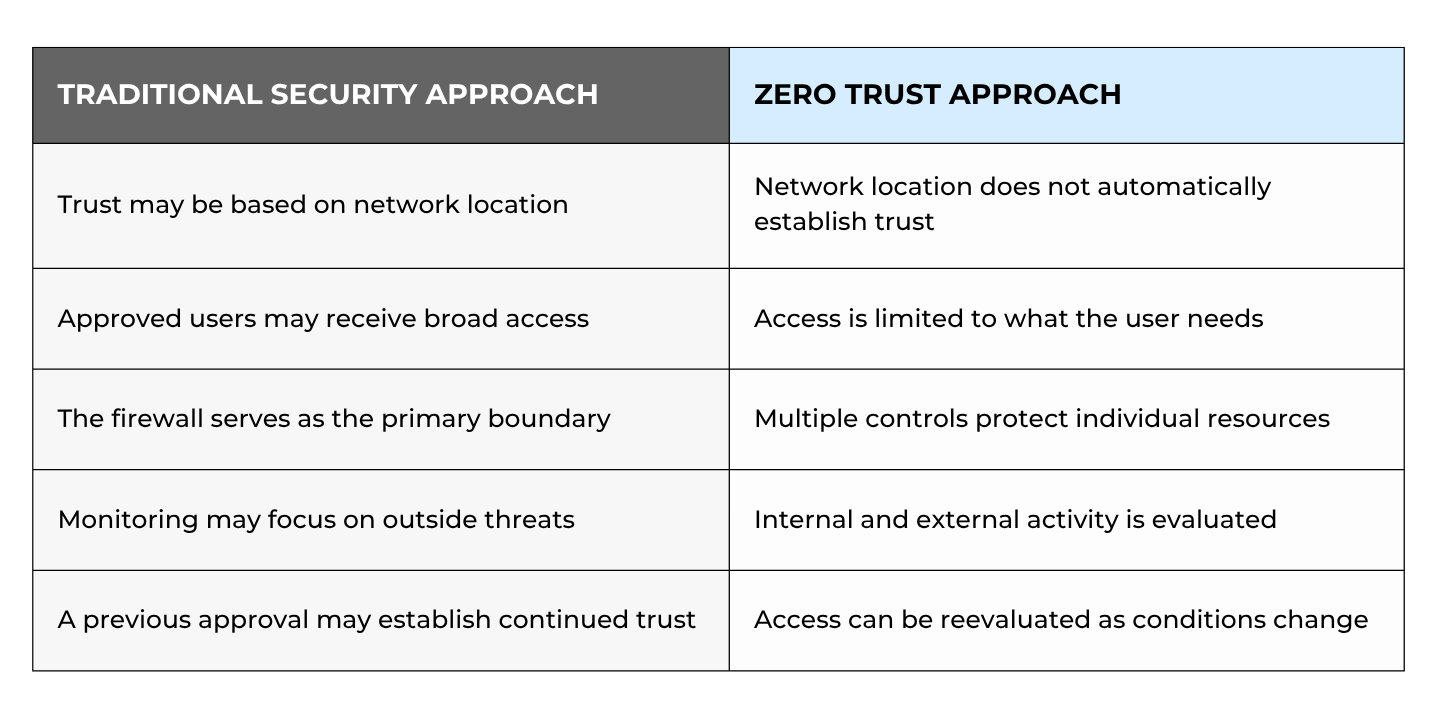
Zero Trust doesn’t necessarily force an employee to complete multi-factor authentication for every page they print. However, the organization verifies the user, device and request according to its security policy rather than relying on location alone.
What Is Zero Trust Print Security?
When it comes to printing, zero trust security applies Zero Trust principles to printers, users, print jobs and the systems that connect them.
A print job passes through several digital and physical stages before someone holds the finished document. The process may involve:
- The person submitting the job
- The computer or mobile device sending it
- A print server, cloud platform or print queue
- The network connection carrying the data
- The printer receiving or temporarily storing it
- The person releasing the physical pages
- The administrator managing the device
Zero trust print security protects a document from submission through physical release.
This distinction matters because secure print release is only one part of the process. Holding a document until someone enters a PIN can prevent pages from being left in the output tray, but it doesn’t automatically encrypt network traffic, update firmware, restrict administrator access or monitor configuration changes.
Why Are Printers a Zero Trust Security Concern?
Printers are used often, but they aren’t always viewed or monitored as high-risk network endpoints. This makes it easier to overlook important security tasks.
Printers connect to business networks
A modern printer can communicate with computers, servers, email platforms, cloud applications and other business systems. Depending on how it is configured, a poorly protected printer could become another potential path into the network.
Printers transmit and store sensitive information
Business printers regularly process contracts, financial reports, medical records, student information, personnel documents and customer data. Some devices also contain internal storage that temporarily or permanently retains job data.
Printers handle sensitive information, so printer security is also document security.
Default credentials may remain unchanged
With default or shared administrator passwords, unauthorized users can change settings or access device functions. Changing those credentials is one of the most basic steps businesses can take, but it’s still an often overlooked printer security mistake.
Printers may receive less monitoring
Computers and servers are typically managed for vulnerabilities, patching, and monitoring, but printers often go years without such oversight.
This becomes risky when older printers no longer get security updates or support current encryption and authentication.
A firewall does not eliminate printer risk
Just because a printer sits behind a company firewall doesn’t mean it’s trustworthy.
Risk can still arise from internal users, stolen credentials, outdated firmware, and unauthorized configuration changes.
This is one of the most common assumptions we see around printer security. Zero Trust addresses it by evaluating users, devices and requests instead of treating everything inside the network as safe.
How Does Zero Trust Apply to Printers?
A Zero Trust print environment uses several controls together. The exact configuration will depend on the organization’s size, risks, equipment and IT resources.
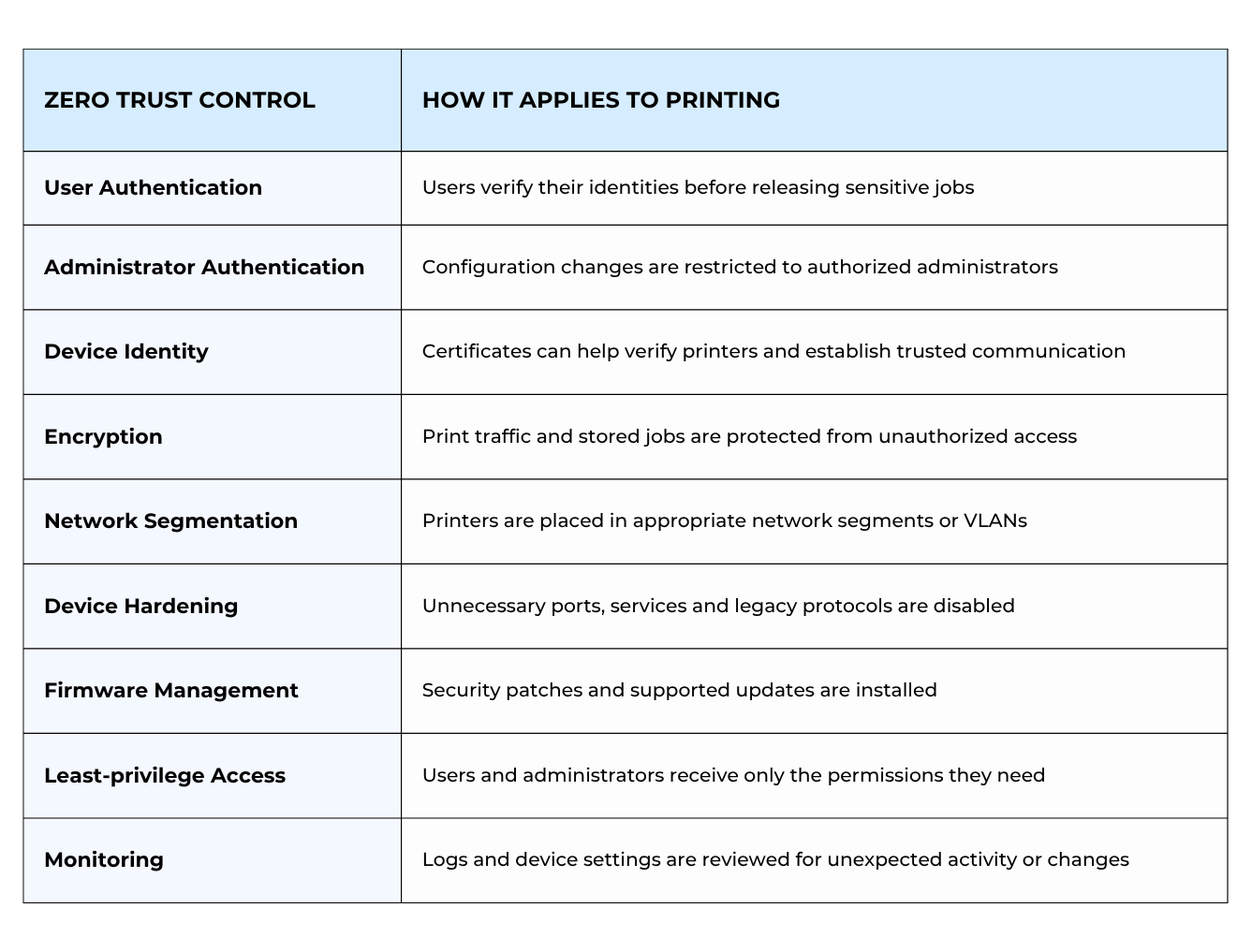
These controls reinforce one another. User authentication protects access to the document. Encryption protects the print data. Network segmentation limits where a compromised device can communicate. Monitoring helps the organization detect when something changes.
For a closer look at common device protections, read our guide to the most important security features on a printer.
What Does Zero Trust Printing Look Like in Practice?
Imagine that an HR employee needs to print a document containing employee benefits information.
In a traditional environment, the employee would select a shared printer and send the job straight to its output tray. The document would then sit unattended until the employee arrives or until someone else picks it up.
In contrast, a Zero Trust print workflow might look like this:
- The print system verifies the employee and the device submitting the job.
- Policy determines whether the employee can access that printer.
- Encryption protects the job while it travels across the network.
- The system holds the document in a protected queue.
- The employee authenticates with a badge, PIN or another approved method.
- The printer releases the document only after successful authentication.
- The system records the activity and removes the retained job according to company policy.
With Zero Trust printing, the user, device, connection, print queue, and physical document all play a role.
How Can You Implement Zero Trust Printing?
Zero Trust doesn’t require every business to deploy the most advanced tools immediately. A practical implementation starts with understanding the current environment and addressing the most important gaps first.
Include printers in your cybersecurity policy
Your security policy should cover printers alongside computers, servers and other connected devices.
Establish minimum requirements for:
- Age of the device
- Administrator credentials
- User access
- Encryption
- Firmware versions
- Enabled ports and protocols
- Device logs
- Network placement
- Print-job retention
- Security reviews
A printer should follow that policy from the day it is installed.
Inventory your print environment
You cannot protect devices you don’t know about. Create an inventory that includes:
- Printers and multifunction devices
- Print servers and cloud print platforms
- Firmware versions
- Device administrators
- Enabled services and protocols
- Sensitive printing workflows
- Users and departments with access
This inventory can reveal unmanaged printers, inconsistent configurations and devices that are no longer supported.
Establish a secure installation standard
Every newly installed printer should receive the same baseline security configuration. This may include changing default passwords, installing current firmware, enabling encryption and disabling unnecessary services.
A consistent installation process prevents security from depending on whoever happened to configure the device.
Require appropriate authentication
Administrative changes should require unique, authorized credentials. Organizations that print sensitive material should also consider user authentication and secure print release.
Harden the printers
Printer hardening reduces the device’s available attack surface. Depending on the equipment, this may involve:
- Disabling unused ports and protocols
- Enabling encrypted communication
- Restricting remote administration
- Configuring role-based permissions
- Removing unused applications
- Setting appropriate job-retention policies
Our guide to protecting a printer from cyberattacks covers several of these foundational steps.
Assign responsibility for firmware updates
Firmware updates often contain patches for known vulnerabilities and improvements to device security. However, businesses don’t always know who should install them.
Don’t assume your managed print agreement automatically includes firmware management. Some providers handle updates, while others focus mainly on supplies, maintenance, and repairs.
Ask your provider:
- Who monitors available firmware?
- Who approves and installs updates?
- How frequently are devices reviewed?
- What happens when a printer reaches the end of support?
Monitor configurations and activity
Zero Trust requires continued visibility. Someone should review security logs, failed access attempts, firmware status and unexpected configuration changes.
Monitoring alone is not enough if no one is responsible for responding. Define who receives alerts, which events require investigation and how an affected printer should be contained.
Which Technologies Support Zero Trust Printing?
Zero Trust is a framework rather than a particular product. Still, several technologies can help businesses put its principles into practice.
Authentication and secure print release
Authentication verifies the person attempting to release a document. Secure print release holds the job until that person is physically present at an approved printer.
Encryption
Encryption protects job data while it travels across the network and, where supported, while it is stored on the device or in a print queue.
Device certificates
Digital certificates help systems confirm the identity of a printer and establish protected communication between trusted devices.
Secure Boot and firmware validation
These features help confirm that a printer starts with authorized software and has not loaded unapproved code.
Network segmentation
Network segmentation places printers in controlled network areas and limits the systems they can communicate with. If a printer is compromised, segmentation can help contain the potential impact.
Configuration monitoring and remediation
Some tools monitor printer settings and compare them against an approved security policy. If a protected setting changes, the tool may alert an administrator or automatically restore the correct configuration.
For example, Xerox Configuration Watchdog can monitor selected security settings on supported devices and reset them when unauthorized changes are detected. Learn more in our guide to Xerox Configuration Watchdog.
Available features vary by model, software version and service. A security tool should therefore be evaluated according to the organization’s actual fleet rather than assumed to work across every device.
What Are the Biggest Challenges of Zero Trust Printing?
The hardest part of Zero Trust printing is often recognizing that printers need to be included in the first place.
Printers are not always viewed as vulnerabilities
Printers are often seen as less risky than laptops or servers. Because of this, their networking, storage, and document-processing capabilities may receive less attention.
The firewall creates a false sense of security
A firewall is an important security control, but it can’t replace authentication, firmware management, encryption, and monitoring. Treating everything behind the firewall as trustworthy conflicts with the basic purpose of Zero Trust.
Organizations may respond reactively
Printer security sometimes becomes a priority only after a security incident, compliance review, insurance requirement, or customer question. Addressing the risk earlier gives the organization more time to evaluate its equipment and implement controls carefully.
Responsibility may be unclear
IT may expect the printer provider to manage firmware. The provider may expect IT to handle it. If the responsibility is not documented, updates can be delayed or missed entirely.
Security controls require continued oversight
Installing security software does not complete a Zero Trust strategy. Policies, users, devices and risks change. Reports must be reviewed, alerts must be addressed and printer settings must be reassessed over time.
Key Takeaways
- Zero Trust does not automatically trust a printer because it is inside the company network.
- Printers are network endpoints that process, transmit and may store sensitive information.
- Secure print release supports Zero Trust, but it is only one part of the framework.
- Authentication, encryption, segmentation, firmware management and monitoring work together.
- Businesses should define who manages firmware and responds to security alerts.
- Zero Trust printing is an ongoing process rather than a one-time configuration.
FAQ
Is secure printing the same as Zero Trust printing?
No. Secure printing generally protects document release by holding a job until the user authenticates. Zero Trust printing also addresses device identity, user permissions, encryption, printer configurations, network access, and monitoring.
Do printers need to be placed on a separate network?
Not in every environment. However, placing printers on an appropriate network segment can limit which systems they can access and help contain a compromised device. The right design depends on the organization’s infrastructure and level of risk.
Does a managed print service include firmware updates?
It depends on the agreement. Some providers monitor or install firmware, while others focus primarily on toner, service and equipment uptime. Ask your provider who is responsible for finding, approving and installing updates.
Can Zero Trust printer security be automated?
Parts of it can be. Some tools monitor printer settings, provide compliance reports and automatically restore approved configurations. Human oversight is still needed to establish policies, investigate alerts and address risks that cannot be corrected automatically.
Does Zero Trust guarantee that a printer cannot be compromised?
No security framework can eliminate every risk. Zero Trust reduces automatic trust, limits access and helps contain potential problems, but businesses still need updated equipment, trained users and ongoing monitoring.
Take a Closer Look at Your Print Security
Zero Trust printing does not require every organization to implement every possible security control at once. Where you start will depend on how sensitive your documents are, the age of your printers, your network, and the resources available to your IT team.
It’s important to know where your print environment still relies on assumed trust. If you are unsure who can access your printers, how devices are configured, or who manages security updates, STPT can help. We can review your printer security and focus on strategies to address those gaps.
Contact us to learn more.
